
How to Set Up a Miss Call Reminder Using Built-In Phone Settings
To set up a miss call reminder, you can enable recurring alert options directly in your native dialer or accessibility settings, configure persistent banner and LED alerts on iOS, or install a lightweight third-party utility to trigger periodic chimes and vibrations until you check your phone.
Taking advantage of your device’s native capabilities ensures that you do not have to rely on external software unless necessary. Built-in tools integrate seamlessly with your operating system, consuming virtually zero extra battery while keeping your private call logs entirely on your device.
Enabling a Native Miss Call Reminder on Android
Certain Android manufacturers include recurring alert functions directly within the stock dialer app. These settings let your phone chime or vibrate periodically after a call goes unanswered.
To check for and configure this feature on a supported Android device:
- Open the Phone App: Launch the default dialer app on your home screen.
- Access Menu Settings: Tap the three vertical dots located in the upper-right corner and select Settings.
- Navigate Calling Accounts: Tap on Calling accounts (or Advanced settings depending on your phone model).
- Locate Missed Call Reminders: Tap Missed call reminders to view available repetition options.
- Set the Frequency: Choose your preferred number of repeated alerts. On many native dialers, these reminders repeat at 5-minute intervals until acknowledged.
If your specific Android build lacks this sub-menu, you can also check your system-wide accessibility settings. Many Android versions include a Notification reminders toggle under Settings > Accessibility > Advanced settings, allowing you to set repeating acoustic or vibration cues for selected applications.
Setting Up Repeat Alerts and Banners on iOS
Apple handles missed notifications through structured lock-screen banners, repeat message alerts, and accessibility cues. While iOS does not offer an infinite periodic chime specifically for missed cellular calls out of the box, you can configure several native features to ensure unanswered calls do not go unnoticed:
- Persistent Banner Alerts: Navigate to Settings > Notifications > Phone and select Banners. Switch the banner style from Temporary to Persistent. When you receive a call notification, it will remain fixed on your screen until manually dismissed.
- Repeat Alerts for Messages: If someone leaves a text after a missed call, you can set the alert to repeat up to 10 times. Go to Settings > Notifications > Messages > Customize Notifications > Repeat Alerts, and select how many times you want the alert to sound at two-minute intervals.
- LED Flash Alerts: For a strong visual cue, head to Settings > Accessibility > Audio & Visual > LED Flash for Alerts. Toggling this on will flash the camera light whenever a notification or call arrives, making it easy to spot even across a quiet room.
Top Third-Party Apps for Periodic Call and SMS Alerts
When built-in tools fall short of providing continuous acoustic reminders, specialized utilities fill the gap. These apps monitor system notifications and trigger recurring sounds, custom vibrations, or lock-screen overlays until you open your device.
| App Name | Platform | Key Highlight | Custom Intervals | Best For |
|---|---|---|---|---|
| Missed Notifications Reminder | Android | Lightweight background service, zero polling | Yes (1 min – hours) | Full audio customization |
| Missed Call &Text Notification | Android | Lock-screen overlay & calendar sync | Yes (1 to 120 mins) | Visual pop-ups & persistent alerts |
| Missed Call Alert Plus | Android | Flash-on-call & VIP filters | Yes (Adjustable start delays) | High-priority contact tracking |
| Missed Call Alert | Android | Automated SMS alerts for missed calls | Yes (Configurable time window) | SMS-based call tracking |
| Missed calls | Android | Cloud call-forwarding notifications | Fixed push intervals | Multi-line and landline support |
| Missed Call Reminder | Android (APK) | LED, vibration, and screen wake cues | Yes (Interval & duration) | Older devices & no-polling needs |
Selecting the Best Miss Call Reminder App for Custom Intervals
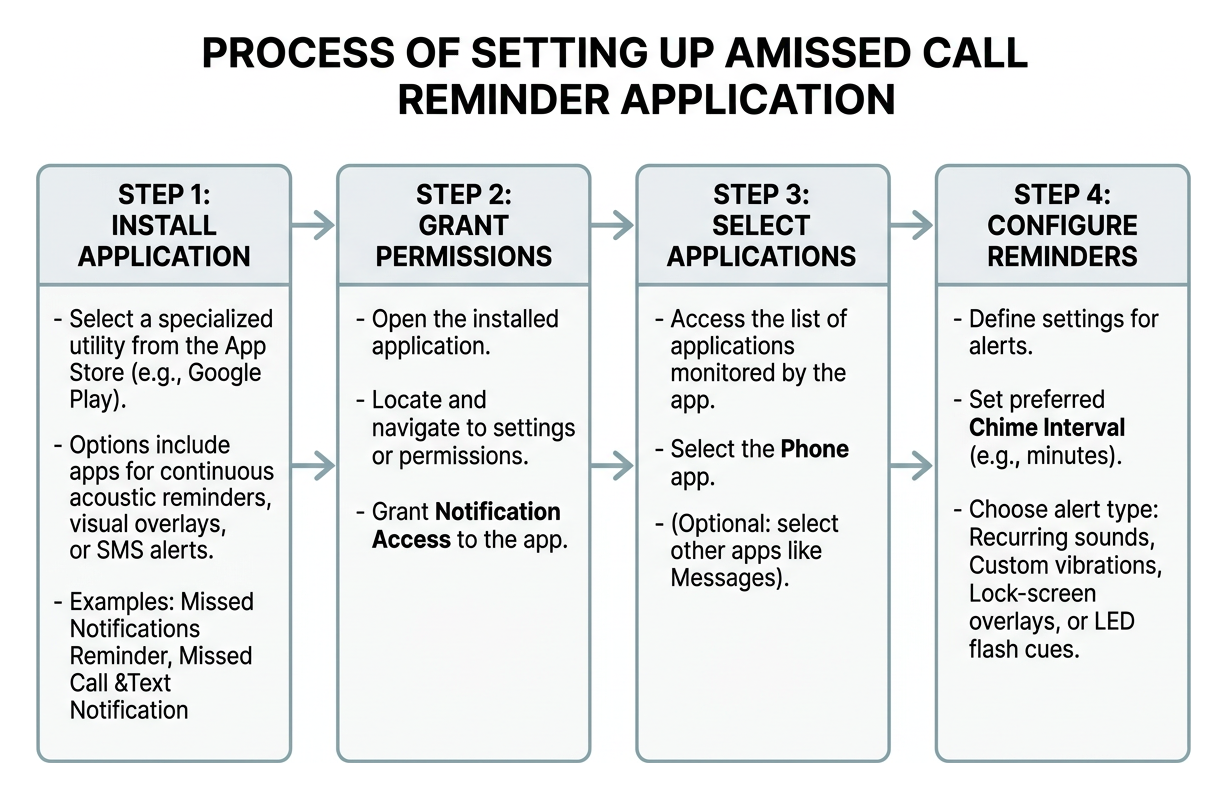
For users who want straightforward periodic audio reminders, Missed Notifications Reminder – Apps on Google Play is one of the most reliable tools available. With over 100,000 downloads and a 2.2K review track record, it operates as an event-driven background service rather than constantly draining your battery with continuous polling.
Once installed, you simply grant notification access, select the Phone app from your application list, and configure your preferred chime interval.
If you prefer prominent visual alerts rather than just sound, Missed Call &Text Notification provides full-screen lock-screen overlay banners. With over 100,000 downloads and a 4.2-star rating across 987 reviews, it allows you to customize reminder intervals anywhere from 1 to 120 minutes. It also offers calendar integration to ensure you are never interrupted during scheduled appointments.
Advanced Features: Flash Alerts, SMS Forwarding, and VIP Filters
If you need more than standard audio reminders, several tools offer advanced capabilities:
- Camera Flash & Proximity Pauses: Missed Call Alert Plus – Apps on Google Play (over 10,000 downloads) features an on-call flash utility that triggers visual signals while ringing. It also includes an intuitive “service pause” function—simply flipping your phone face-down suspends lower-priority alerts.
- VIP Contact Filtering: Rather than chiming for every telemarketer, you can configure VIP keyword and sender filters to ensure you only receive repeat alerts when immediate family or doctors reach out.
- Automated SMS Notifications: If you are often away from internet access, tools like Missed Call Alert (50,000+ downloads) can automatically log missed calls and route SMS notifications across your carrier network.

Troubleshooting and Optimizing Alert Reliability
Third-party reminder tools must run in the background to detect missed events. However, modern mobile operating systems aggressively shut down background apps to conserve battery life, which can cause reminders to stop working unexpectedly.
Fixing Notification Delays and Battery Killer Settings
If your reminder app suddenly goes silent after a few hours of inactivity, the issue is almost certainly an aggressive operating system power manager.
To ensure continuous operation:
- Disable Battery Optimization: Navigate to Settings > Apps > [Your Reminder App] > Battery and select Unrestricted (or “Don’t optimize”).
- Enable Autostart (Xiaomi / MIUI): Open Security > Permissions > Autostart and enable the toggle next to your reminder app.
- Configure App Launch Settings (Huawei / EMUI): Go to Settings > Battery > App Launch, find your app, switch it to Manage Manually, and make sure Auto-launch, Secondary launch, and Run in background are all enabled.
- Grant Overlay Permissions: If using an app with lock-screen pop-ups, ensure Display over other apps is toggled on under your system settings.
Protecting Privacy and Securing Notification Data
Because reminder apps require access to notifications, call logs, or SMS events, privacy is a natural concern. When choosing a tool, prioritize developers who adhere to strict data minimization practices.
Review the app’s Google Play Data Safety section to verify that no personal data is collected or shared with third parties. High-quality utilities process notification events entirely in local, hashed memory and require only the specific permissions needed to play a sound or light an LED.
Beyond Device Notifications: Automated Check-Ins for Family Safety
While a phone alert helps you remember to return a call, it still relies on the other person noticing the phone in the first place. For older adults living independently, an unanswered call can signal a serious concern—such as a fall, sudden illness, or a misplaced handset.

When keeping vulnerable loved ones safe, it is helpful to look at our buying guide to evaluate proactive safety strategies. Many families find that pairing automated routines alongside standard devices creates the ultimate safety net.
Instead of waiting and worrying after a missed call, automated daily check-in services place structured calls directly to a senior’s home phone or mobile. If the call goes unanswered after multiple attempts, the system automatically alerts a designated family “Care Circle” to step in. Learning about check-in calls vs a medical alert button can help families determine the right balance of passive and active safety measures.
Frequently Asked Questions About Missed Call Reminders
Why did my missed call reminder app stop sending audible alerts?
This almost always happens when your operating system’s power management or “Doze” mode puts the app into deep sleep. To resolve this, open your phone’s application settings, locate the app, and set its battery usage to “Unrestricted.” For devices made by Xiaomi, Huawei, or Samsung, ensure that autostart permissions and background execution locks are explicitly granted.
Can I set separate reminder intervals for missed calls and text messages?
Yes. Dedicated tools like Missed Call Reminder – Download APK allow users to independently configure alert types (sound, vibration, LED, or screen wake) and timings for incoming calls, SMS, and MMS. This ensures you can apply an urgent 2-minute chime for missed calls while keeping standard text reminders on a relaxed 15-minute interval.
What should I do if my phone has no built-in repeat notification setting?
If your device lacks native settings, download a verified third-party utility such as Missed Notifications Reminder from Google Play. Alternatively, you can use accessibility features like LED flash alerts on iOS. Families seeking reliable, automated oversight without installing complicated mobile apps can explore how our service operates by reading how it works or comparing communication support options designed for independent living.
Conclusion
Managing unanswered communications does not have to be stressful. Whether you configure your phone’s built-in dialer settings, turn on accessibility flash cues, or install a dedicated reminder utility, setting up repeated alerts takes less than two minutes and ensures critical messages are never lost in the daily rush.
When caring for an aging relative, missed calls carry higher stakes. At Caregiver365, we provide automated daily phone check-in calls that confirm your loved one’s well-being without requiring new hardware, wearable pendants, or complex setups. Our service works on any landline or mobile phone, seamlessly alerting a Care Circle of up to eight family members if a daily check-in goes unanswered.
Discover how daily check-in calls work to give your entire family total peace of mind every single day.